Controls
Sliders and switches for the values worth tuning by hand.
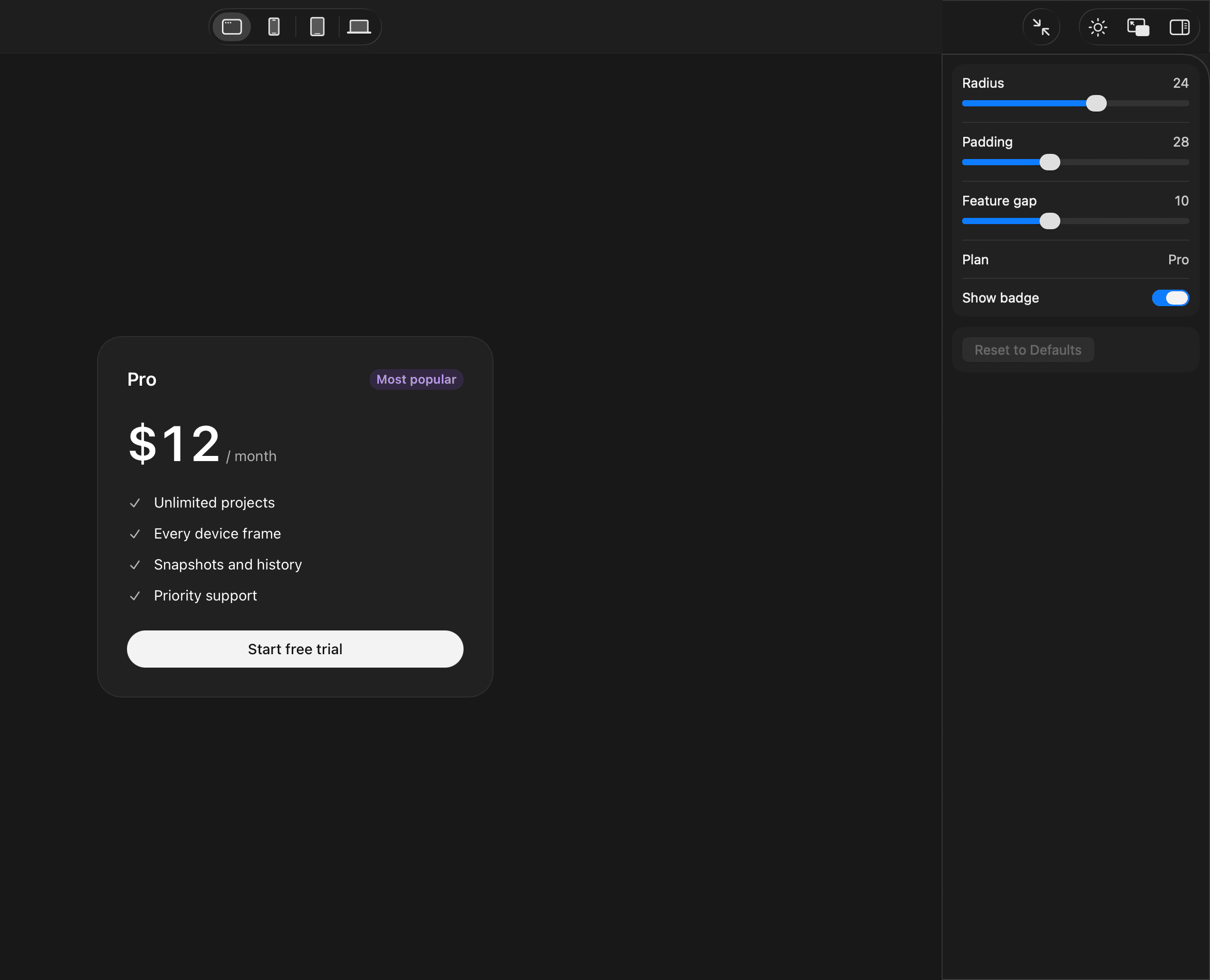
What controls are
Some values are faster to feel than to describe: a radius, a gap, a font size, which state to show. Claude can give a variant a few controls for those, and you tune them by hand in the inspector while the page updates as you drag.
Ask for them when you want them. Claude picks the few that matter for what the variant is testing.
› Add controls for the spacing and the corner radius.
The inspector
Open a variant in a preview, and the inspector opens by itself the first time it has controls. After that, the button at the far right of the toolbar, or ⌥⌘I, shows and hides it.
| A number | A slider with a number field. Claude sets the range that makes sense for it. |
|---|---|
| True or false | A switch. |
| A list of options | A pop-up menu, often your design system’s own tokens. |
| A hex color | A color well, with opacity. |
| Any other text | A text field, for trying copy. |
Right-click a control and choose Reset to Default to undo it, or use Reset to Defaults at the bottom for all of them. A variant without controls shows No Controls, with a Copy Prompt button that copies a request for Claude.
Keeping what you tuned
Your values are saved for that variant and show on every one of its frames, in screenshots and in the shots Claude takes. They stay in the playground, not in the code, until you say so:
› Keep what I tuned.
Claude writes your values into the prototype as its new defaults and resets the inspector, so the code and the frames match again.